- Professional Manufacturer and Supplier
- +86 139 2922 0402
- sales@terismond.com


► Summary
- Smart Plug-in dimmer only supports 2.4 GHz Wi-Fi & Bluetooth network.
- Please ensure that the network is stable when using device.
- Smart Plug-in dimmer is compatible with “Smart Life” App, Amazon Alexa and Google Assistant.
► Add Devices
Step 1 : Download Smart Life App
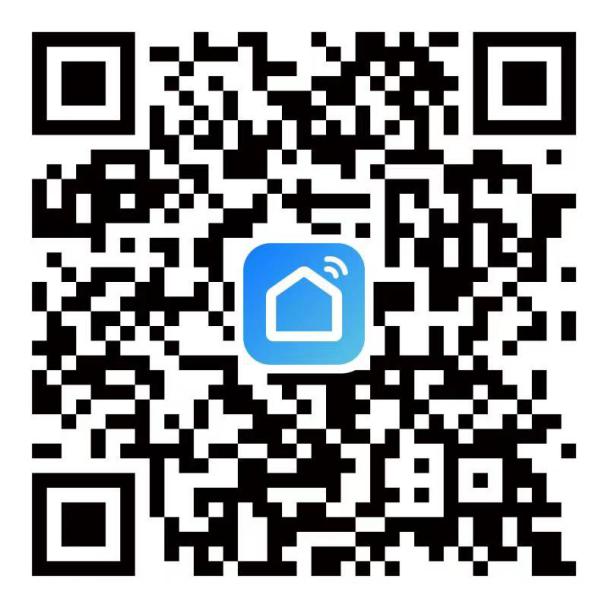
Please scan the QR code below or search “Smart Life” in the APP Store or Google Play to download the App.
Step 2 : Registration or Log In
Once the App downloaded, enter the Log In/Sign Up interface. Tap “Sign Up” to create an account by entering your email address to get verification code and “Set password” to register successfully. Choose “Log In” if you already have a Smart Life account.
Step 3 : Connect with mobile phone
WIFI Mode Connect
- Turn on the smart phone and make sure your smart phone is connecting with your home Wi-Fi 2.4GHz successfully.
- Quickly press the ON/OFF button for 3 times continually ( Skip this step if the indicator automatically blink ).Make sure the red indicator is blinking fast [2/s].
Note : The plug has been programed indicator automatically blinking fast before it is out of factory. This step can be skipped unless the red light indicator is steady and does not get blinking itself.
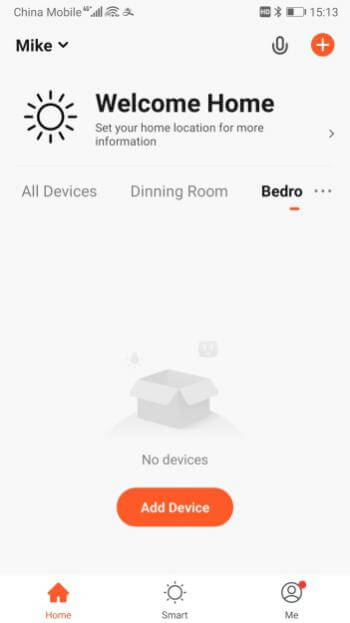
- Open the APP, click “+” and go to “Add Device”.
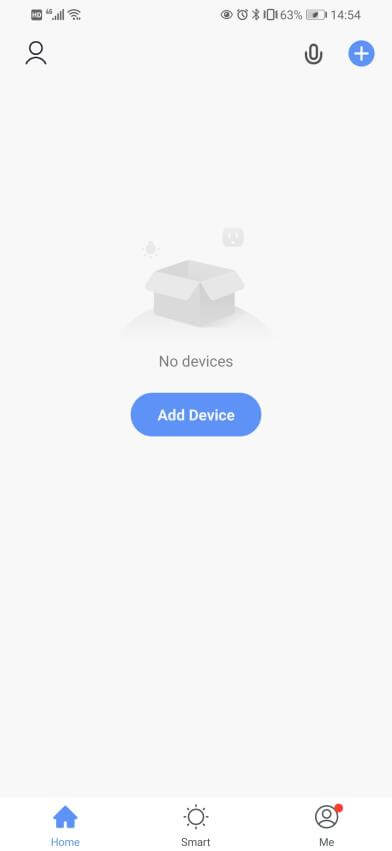
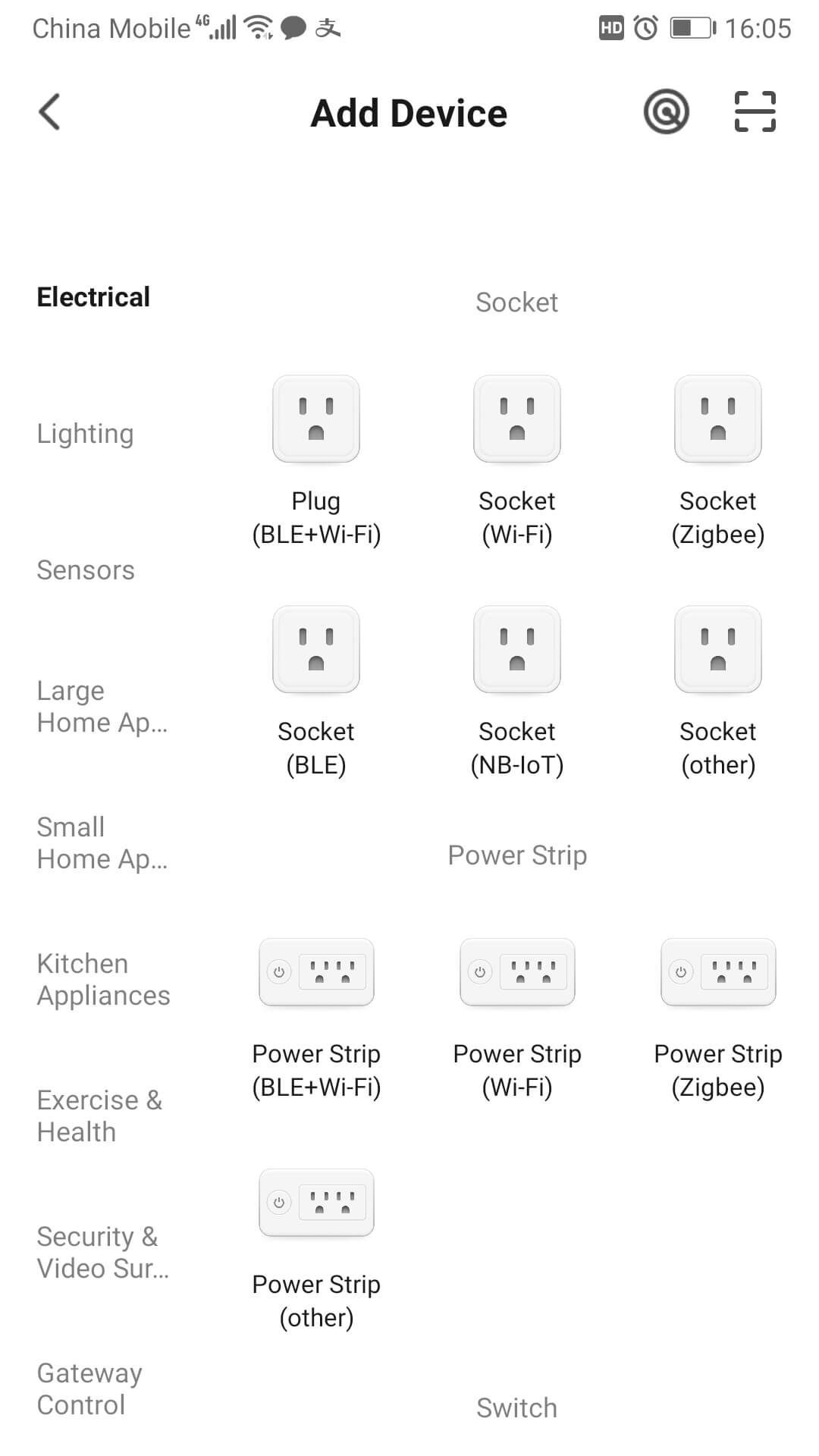
4.Choose “Electrical” – “ Plug (BLE+Wi-Fi) ”.
5. Click “Next” and Click “Blink Quickly”
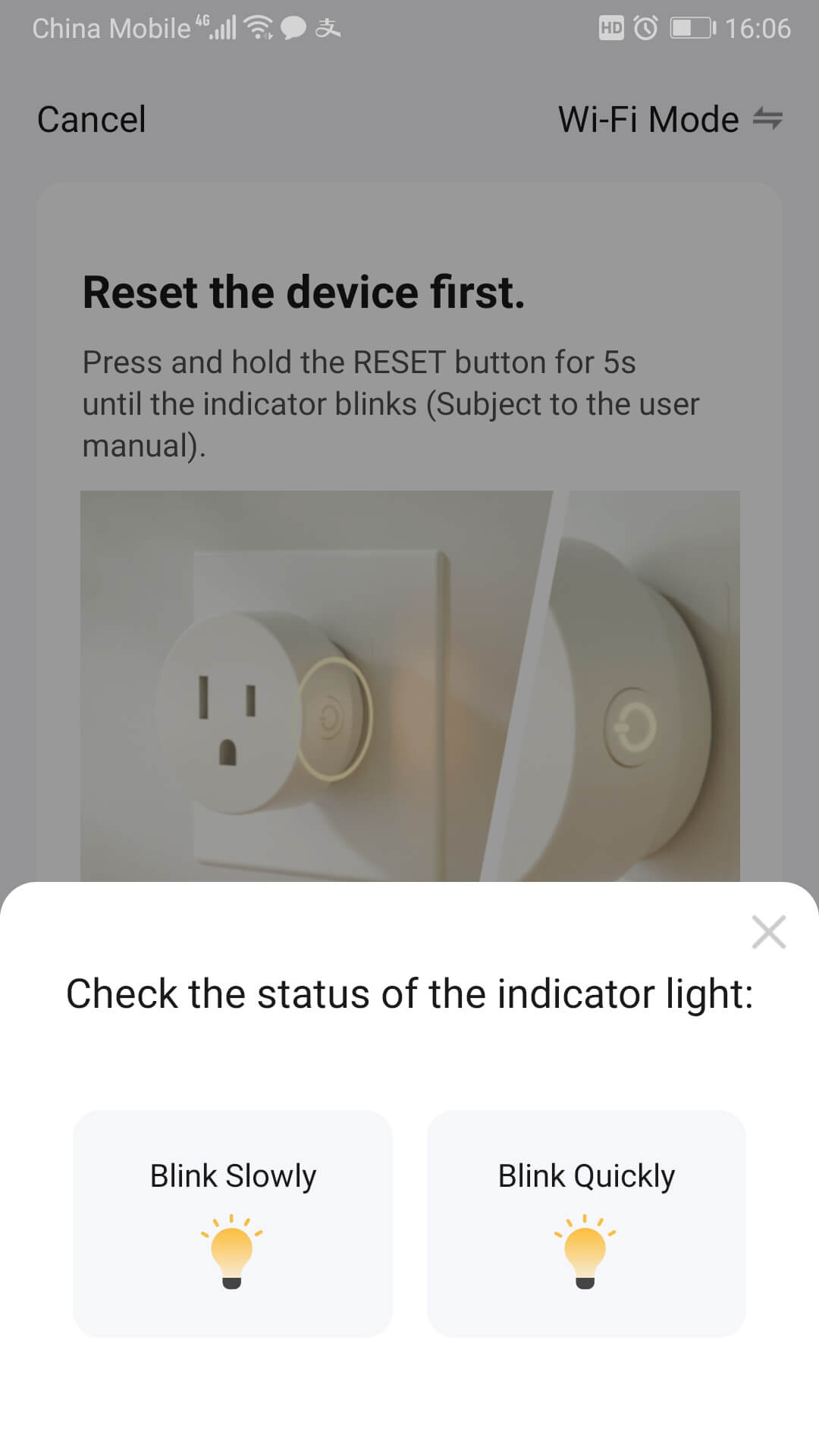
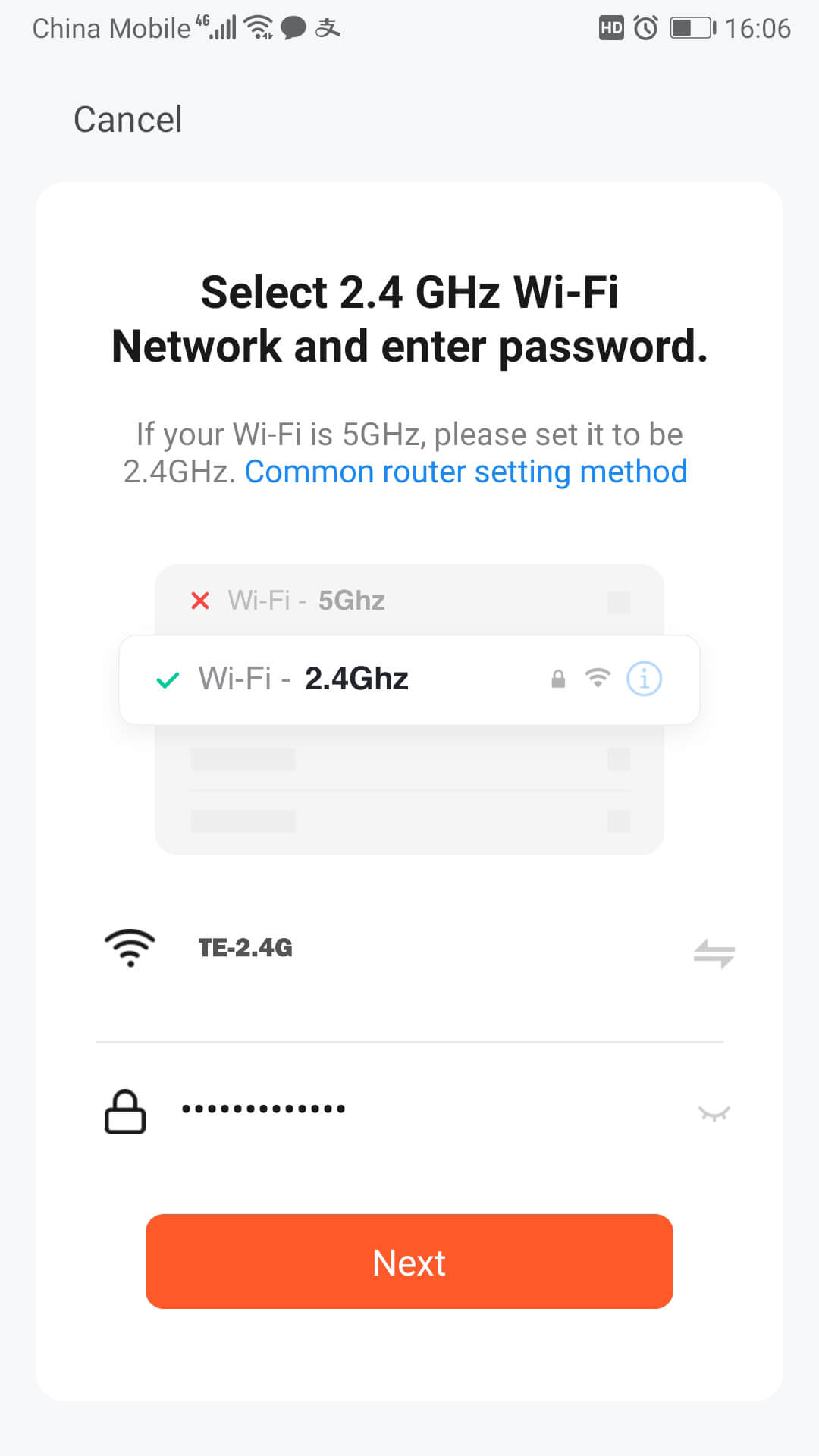
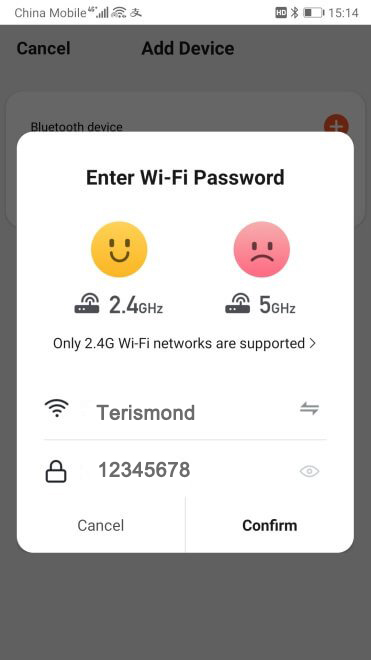
6. Enter Wi-Fi password and click to “Next”
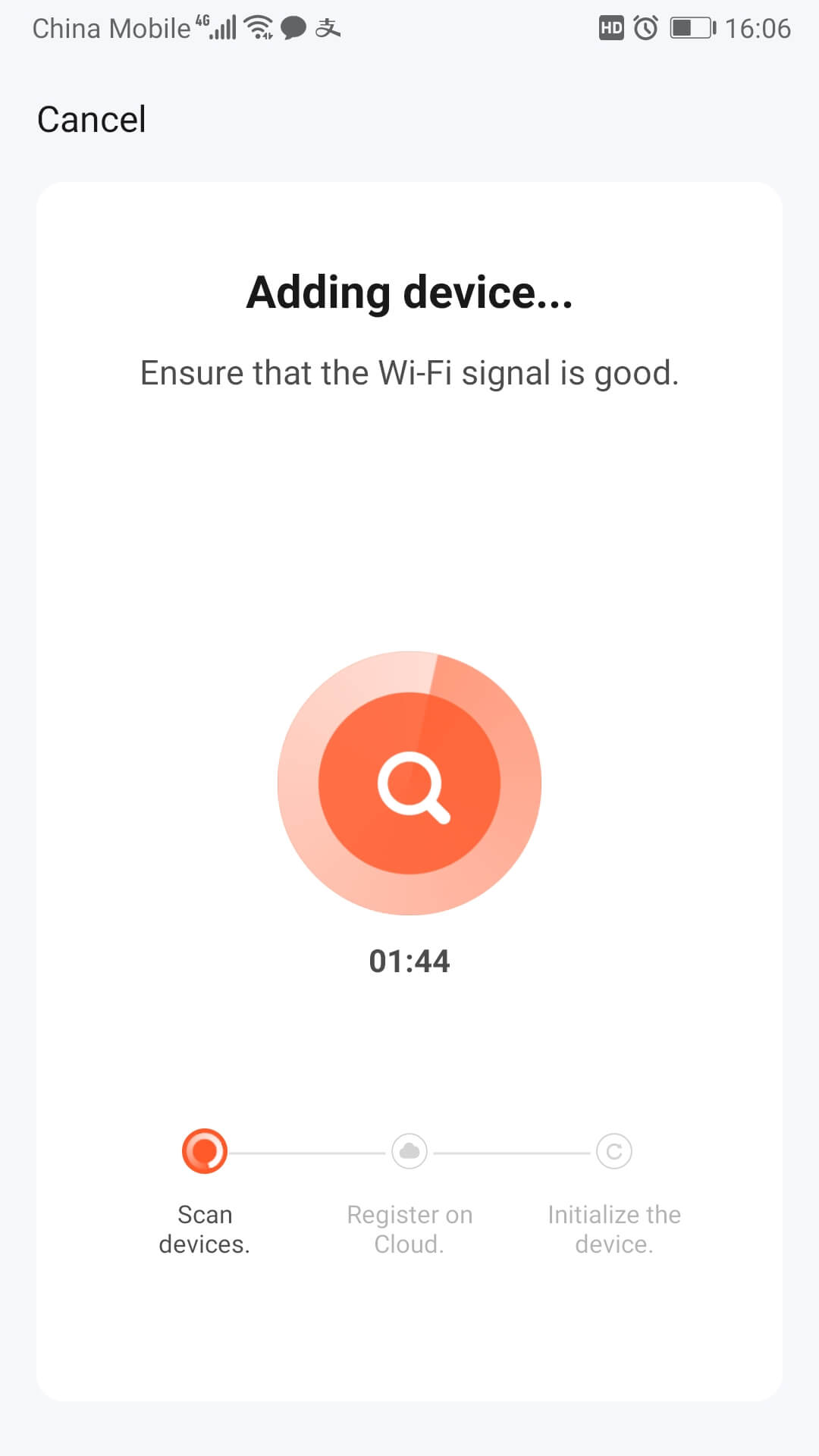
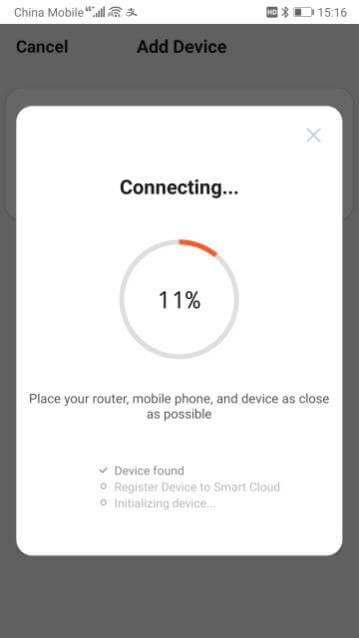
7. Adding Device…
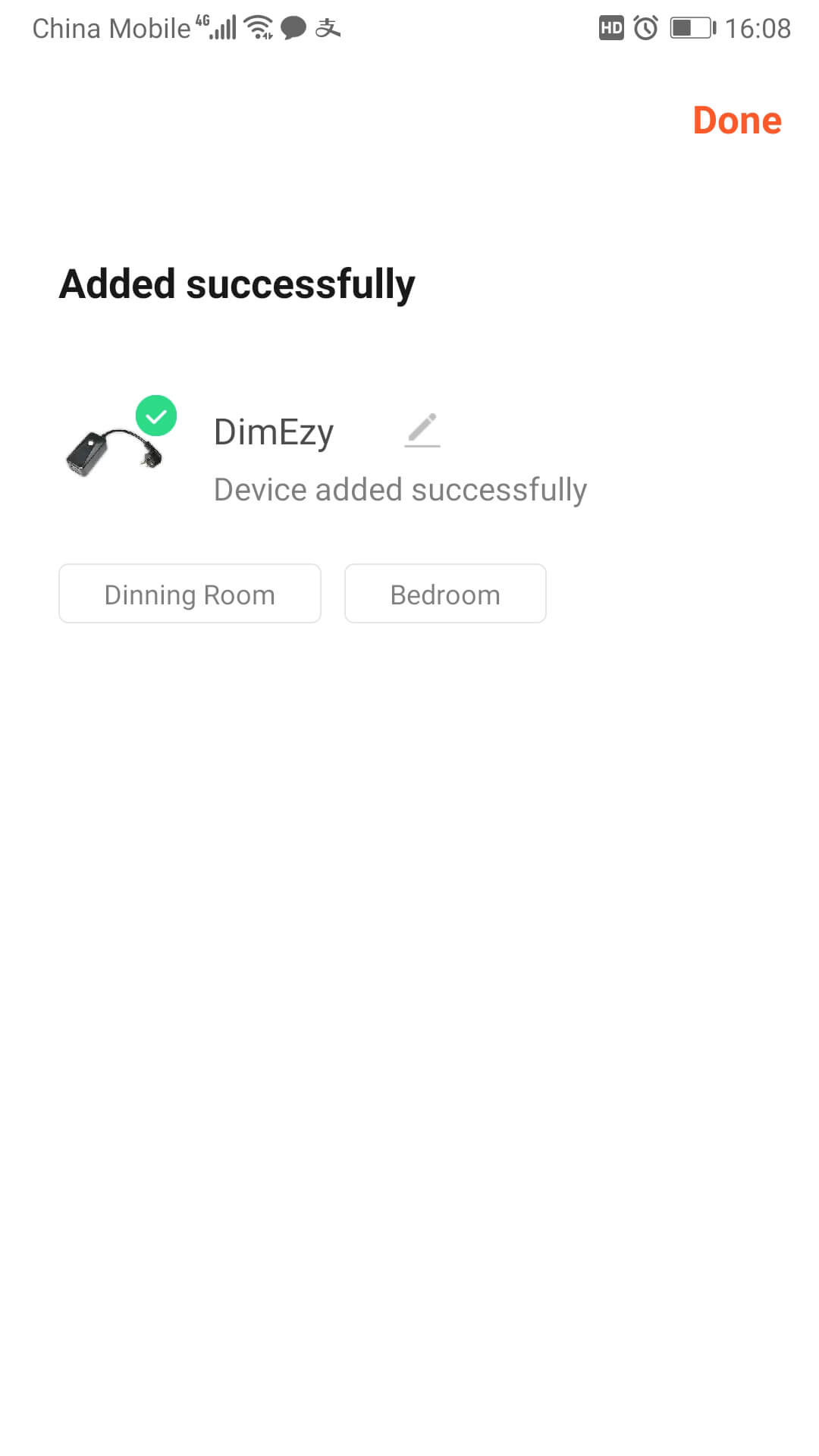
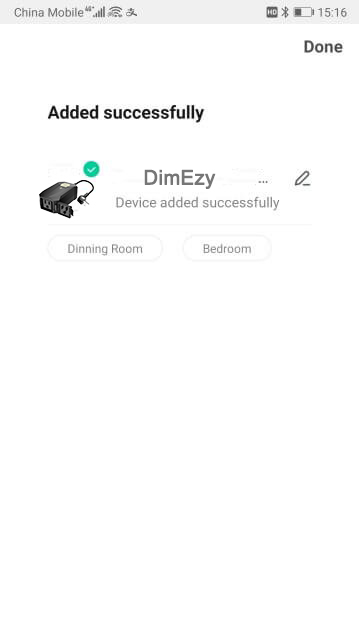
8.Added Successfully. Click ”” to Rename or just leave it as default name and Click “Done” to complete
Note: If the indicator light is red, it means that the device is not connected to the network. If the indicator light is white, it means the device is successfully connected to the network.
* Please Disconnect/Disable Bluetooth in Wifi Mode!*
Bluetooth Added Manually
- Turn on the Bluetooth & Wifi of smart phone and make sure your smart phone connecting with your home Wi-Fi 2.4GHz successfully.
2. Quickly press the ON/OFF button for 3 times continually (Skip this step if the indicator automatically blink ).Make sure the red indicator is blinking fast [2/s].
Note : The plug has been programed indicator automatically blinking fast before it is out of factory. This step can be skipped unless the red light indicator is steady and does not get blinking itself.
3. Open the APP, click “+” and “Devices” will be popped up automatically,
then tap ”go to add”

4. Choose your network and enter password.
5. Connecting…
6. Added Successfully. Click ” ” to Rename or just leave it as default name and Click “Done” to complete
Note : If the indicator light is red, it means that the device is not connected to the network. If the indicator light is white, it means the device is successfully connected to the network.